Prerequisites
Before you begin, make sure the following requirements are met:
- Docker is installed on your system.
- The Docker service is running.
Verify your Docker installation:
docker --version
If Docker is not installed, follow the official Docker installation guide for your operating system:
Docker Engine Installation Guide:
https://docs.docker.com/engine/install/
After installing Docker, verify that it is running correctly before continuing with the next steps.
Step 1: Create a Docker Volume
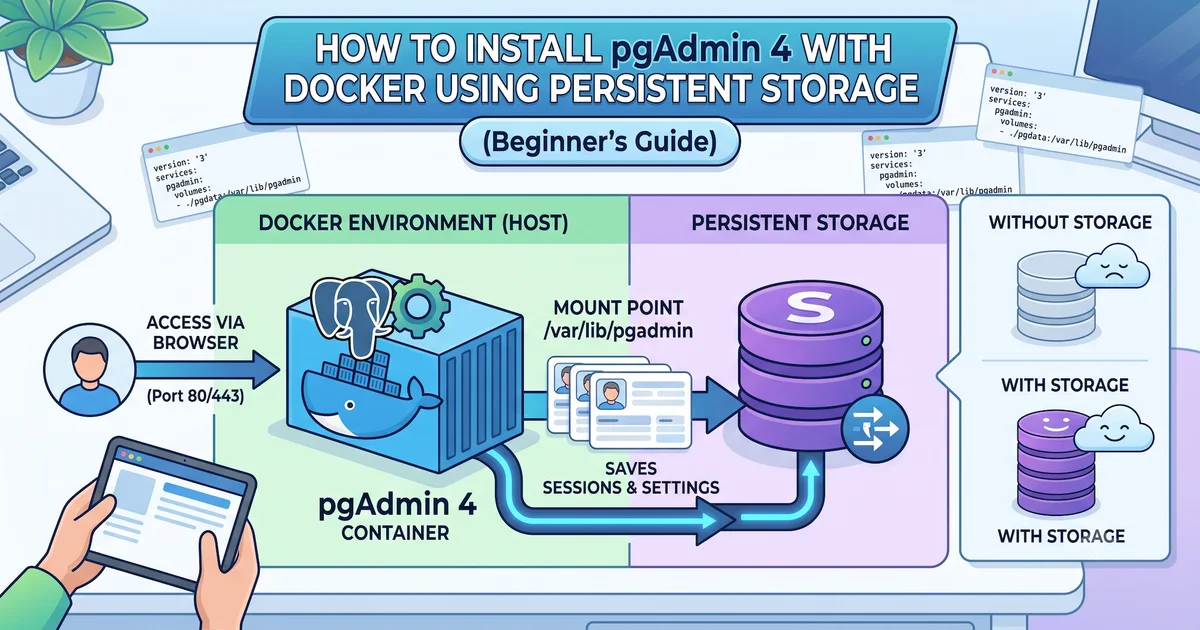
Create a Docker volume to store pgAdmin data.
docker volume create pgadmin-data
This volume stores:
- Saved server connections
- User preferences
- Configuration
- Other pgAdmin data
Because the data is stored in a Docker volume, it is preserved even if the container is stopped or removed.
Step 2: Run the pgAdmin Container
Replace the default email address and password with your own values.
Note
If your password contains special characters such as:
( ) ; $ & ! \ " 'wrap it in single quotes when passing it to Docker.
docker run -d \
  --name pgadmin \
  --restart unless-stopped \
  -p 5050:80 \
  -e PGADMIN_DEFAULT_EMAIL="your-email@example.com" \
  -e PGADMIN_DEFAULT_PASSWORD='your-secure-password' \
  -v pgadmin-data:/var/lib/pgadmin \
  dpage/pgadmin4
Step 3: Open pgAdmin
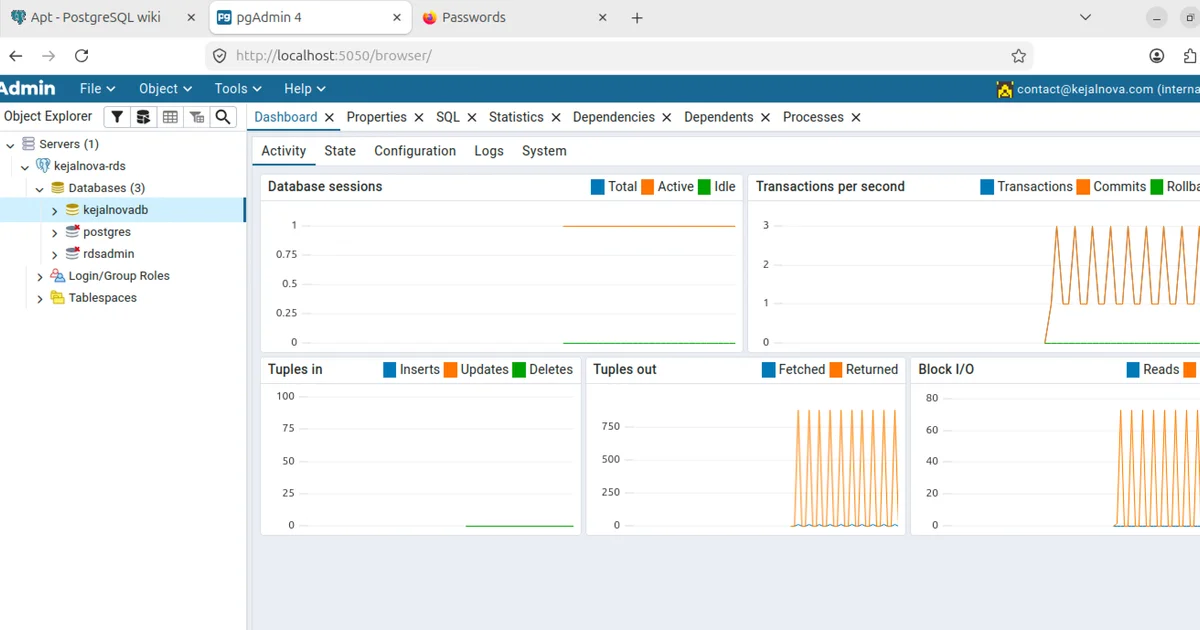
Open your browser and visit:
http://localhost:5050
Log in using the email address and password you configured.
Login Screen
Stop the Container
docker stop pgadmin
Stopping the container does not delete your data.
Start the Container Again
docker start pgadmin
All your saved connections and settings will still be available.
Restart Policy
This guide uses:
--restart unless-stopped
This means:
- The container starts automatically after a system reboot.
- The container restarts automatically if it crashes.
- The container does not restart if you manually stop it using
docker stop. - Start it again manually whenever you need it.
Verify the Docker Volume
List all Docker volumes:
docker volume ls
Expected output:
DRIVER    VOLUME NAME
local     pgadmin-data
Useful Docker Commands
Check running containers:
docker ps
Check all containers:
docker ps -a
View container logs:
docker logs pgadmin
Restart the container:
docker restart pgadmin
Conclusion
Running pgAdmin with Docker is a simple and reliable way to manage PostgreSQL databases. Using a Docker volume keeps your saved connections and settings safe, while the unless-stopped restart policy ensures the container starts automatically after a reboot but stays stopped when you intentionally stop it.
This approach works well for local development, learning environments, and personal database management.
// comments (0)
// no comments yet — be the first!
Want to join the discussion?
→ login create account