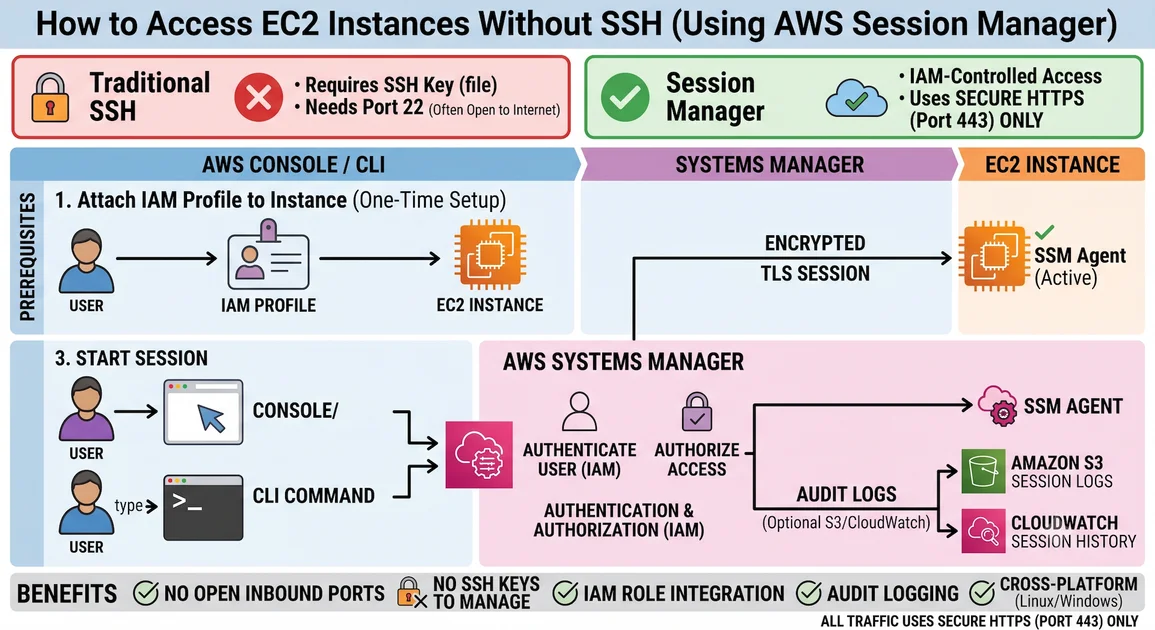
Managing EC2 servers usually means open SSH ports, key pairs to track, and a bastion host to maintain — more attack surface than you'd like.
AWS Systems Manager Session Manager skips all of that. You connect using IAM permissions alone, over HTTPS (port 443) — no open SSH port, no keys, no bastion host.
🎥 Watch the Complete Video Tutorial
Here's how it works and how to set it up.
Why bother switching from SSH?
SSH works fine. Nothing wrong with it. But it comes with a lot of small jobs that pile up over time:
- You have to keep a port open on the internet
- You have to create, share, and rotate SSH keys
- If the server is private, you need a bastion host just to reach it
- Tracking who logged in and what they did isn't easy
Session Manager removes most of this. You don't open any port, you don't manage keys, and every login can be logged automatically.
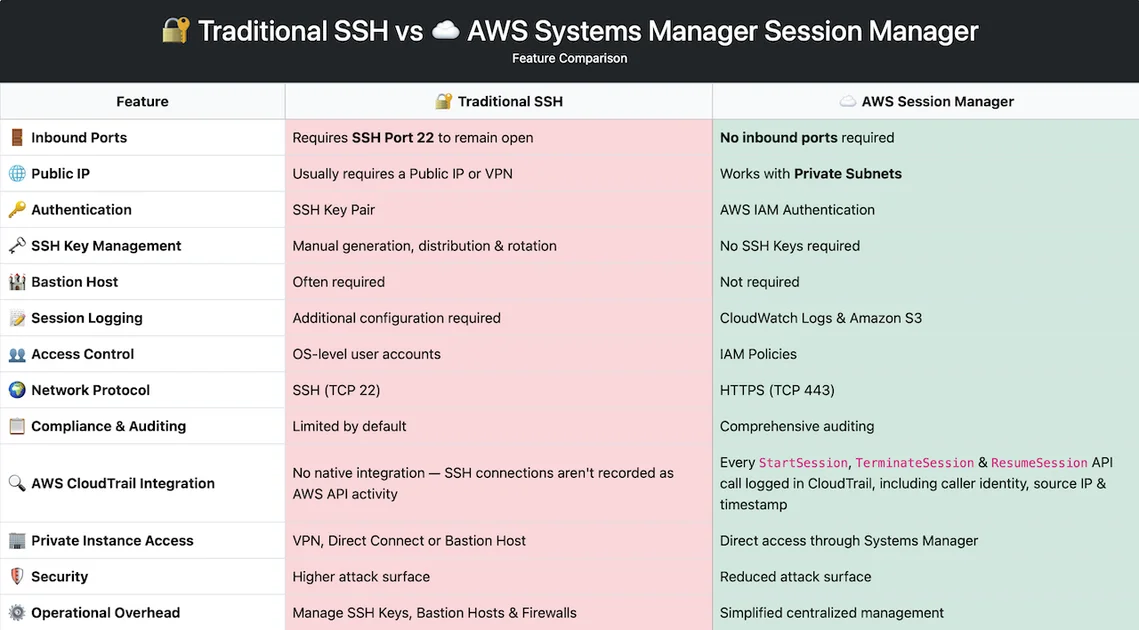
It also works across EC2, on-prem servers, and other cloud providers if you're running a hybrid setup — not just AWS-only environments.
The basic flow
When you connect, your request goes from the console or CLI to the Systems Manager service, and from there to the SSM Agent running on your instance — all over HTTPS. Nothing connects to the instance directly.
You (Console or CLI)
        |
     HTTPS
        |
        v
AWS Systems Manager
        |
     HTTPS
        |
        v
EC2 Instance (running SSM Agent)
What you need before you start
A supported OS. This covers most of what people actually run: Amazon Linux 2 and 2023, Ubuntu, RHEL, SUSE, Windows Server, and macOS as a managed node.
The SSM Agent installed and running. Amazon Linux comes with it pre-installed. Check whether it's running with:
sudo systemctl status amazon-ssm-agent
If it's not running, start it:
sudo systemctl enable amazon-ssm-agent
sudo systemctl start amazon-ssm-agent
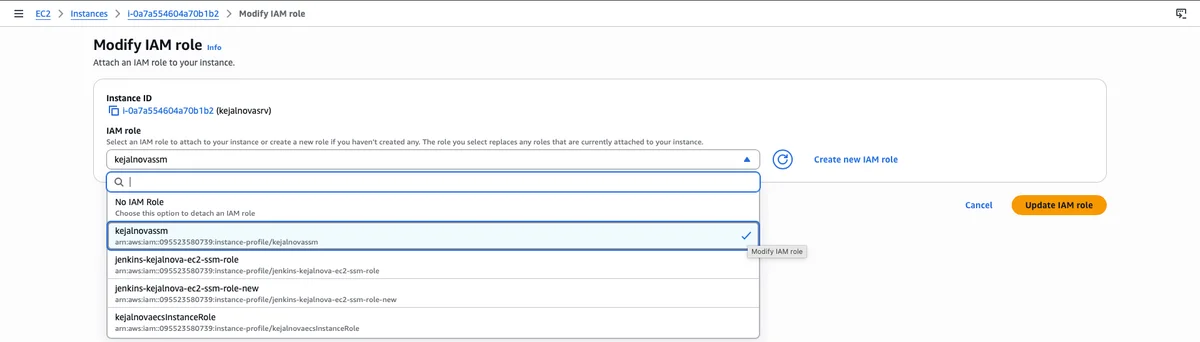
One thing that trips people up: if you attach an IAM role to an instance after it's already launched, the agent won't automatically pick up the new permissions. Give it a restart instead of rebooting the whole box:
sudo systemctl restart amazon-ssm-agent
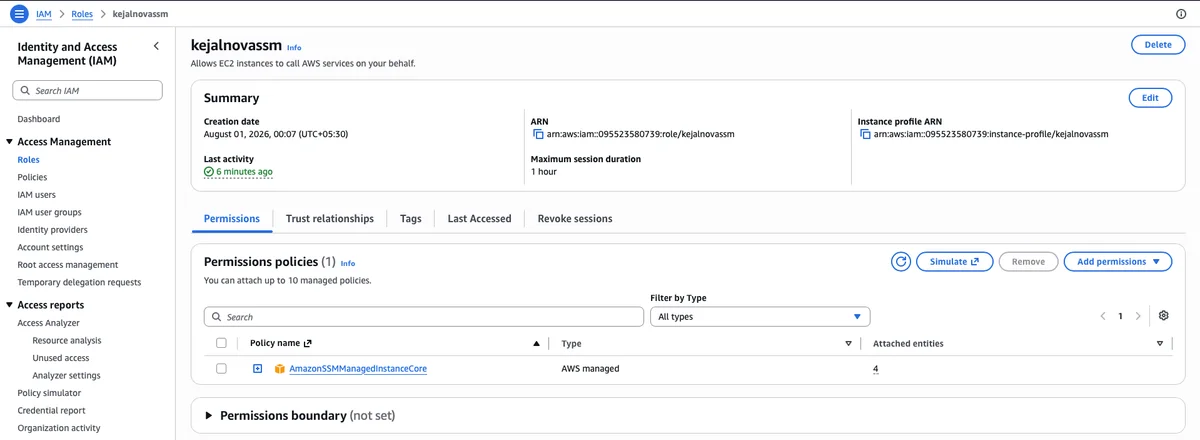
An IAM role with the right policy. Attach AmazonSSMManagedInstanceCore to your instance's role. This one policy is what unlocks Session Manager, along with a few related tools like Run Command and Patch Manager. If you're also using the CloudWatch Agent, add CloudWatchAgentServerPolicy too.
Connecting to your instance
Through the AWS Console:
- Sign in to the AWS Console and open AWS Systems Manager.
- In the left menu, under Node Tools, click Session Manager.
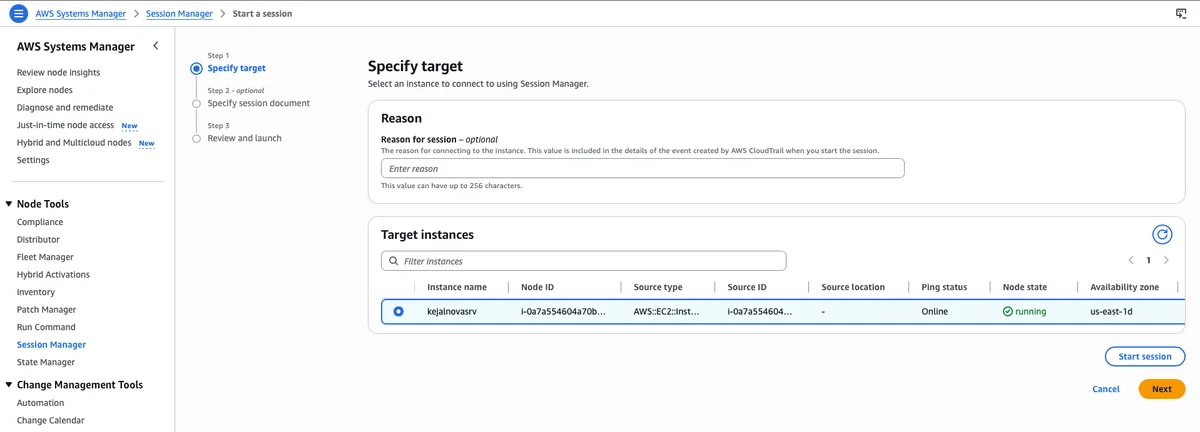
- Click Start session. This opens a 3-step wizard: Specify target → Specify session document (optional) → Review and launch.
- On Step 1 – Specify target, you'll see a Reason field. It's optional, but worth filling in — whatever you type here gets attached to the CloudTrail event created when the session starts, so it's a quick way to leave a note on why you connected.
- Below that, the Target instances table lists your available instances, along with their Ping status and Node state. Make sure the instance you want shows Online and Running — that confirms the SSM Agent is active and reachable.
- Select the instance (radio button), then either:
- Click Start session right away to connect immediately, or
- Click Next if you want to step through the optional session document and review screens first.
- AWS opens a browser-based terminal directly to your instance — no separate software needed.
- You're now in a shell on the instance and can run commands like you would over SSH.
- When you're done, just close the tab or type
exitto end the session.
(Note: You can also get to this same screen from the EC2 console — select an instance, click Connect, then choose the Session Manager tab.)

Through the AWS CLI:
aws ssm start-session --target i-xxxxxxxxxxxxxxxxx
Replace i-xxxxxxxxxxxxxxxxx with your instance ID. This drops you straight into a shell session, the same as the console option.
Once you're in, you'll usually want to switch off the default session user:
whoami                  # see who you are right now
sudo -i -u ec2-user     # switch to ec2-user
sudo -i                 # or go straight to root
When an instance won't show up
If an instance isn't appearing under Managed Nodes in Systems Manager, it's almost always one of these:
- The IAM role is missing, or the policy isn't attached
- The SSM Agent isn't running
- There's no route to the internet or no VPC endpoint set up
- You're looking in the wrong region
- The agent is an old version that needs updating
A few commands help narrow it down. Check the agent's status directly on the box:
sudo systemctl status amazon-ssm-agent
Look at its logs if something's clearly wrong:
sudo tail -50 /var/log/amazon/ssm/amazon-ssm-agent.log
And confirm from your machine whether AWS actually sees the instance as registered:
aws ssm describe-instance-information
Tracking who connected, using CloudTrail
Session logs (what someone typed) are one thing. But you'll often also want a record of who started a session, when, and on which instance — that's where CloudTrail comes in.
Every time someone starts, ends, or resumes a session through Session Manager, that action shows up as an event in CloudTrail — things like StartSession and TerminateSession. Each event records the IAM user or role that made the call, the time, the source IP, and the target instance.
This is separate from session logging (CloudWatch/S3), and it's useful for a different reason: even if you never enabled full session content logging, CloudTrail still gives you a paper trail of connection activity across your whole account. Combine both, and you get:
- CloudTrail — who connected, when, and to what (the "who did it" record)
- CloudWatch Logs / S3 — what they actually typed during the session (the "what did they do" record)
To check this yourself: open CloudTrail in the console, go to Event history, and filter by event name StartSession. You'll see every Session Manager connection made in that region, along with the identity behind it.
A few habits worth keeping
- Turn off inbound SSH once you've confirmed Session Manager works
- Skip the public IP if the instance doesn't need one
- Let IAM handle access instead of managing keys
- Turn on session logging, and send it to CloudWatch or S3
- Encrypt those logs with KMS if you're storing anything sensitive
- Give people the minimum IAM permissions they actually need
- Keep the SSM Agent updated — old agents cause more headaches than they save
Wrapping up
Session Manager isn't a magic fix for security, but it does remove a lot of the risk that comes bundled with SSH — open ports, floating keys, bastion hosts you forgot were still running. For most setups, attaching AmazonSSMManagedInstanceCore to your instance role is genuinely most of the work. The rest is just making sure the agent's running and your network can reach the right endpoints.
// comments (0)
// no comments yet — be the first!
Want to join the discussion?
→ login create account